Remote Support and New York Installs. Need a Service? Call us at (718) 500-4114.
Hik-Connect Android FAQ

Legal Information
©2021 Hangzhou Hikvision Digital Technology Co., Ltd. All rights reserved.
About this Manual
The Manual includes instructions for using and managing the Product. Pictures, charts, images and all other information hereinafter are for description and explanation only. The information contained in the Manual is subject to change, without notice, due to firmware updates or other reasons. Please find the latest version of this Manual at the Hikvision website ( https:// www.hikvision.com/ ).
Please use this Manual with the guidance and assistance of professionals trained in supporting the Product.
Trademarks
 and other Hikvision's trademarks and logos are the properties of Hikvision in various jurisdictions.
Other trademarks and logos mentioned are the properties of their respective owners.
Disclaimer
TO THE MAXIMUM EXTENT PERMITTED BY APPLICABLE LAW, THIS MANUAL AND THE PRODUCT DESCRIBED, WITH ITS HARDWARE, SOFTWARE AND FIRMWARE, ARE PROVIDED "AS IS" AND "WITH ALL FAULTS AND ERRORS". HIKVISION MAKES NO WARRANTIES, EXPRESS OR IMPLIED, INCLUDING WITHOUT LIMITATION, MERCHANTABILITY, SATISFACTORY QUALITY, OR FITNESS FOR A PARTICULAR PURPOSE. THE USE OF THE PRODUCT BY YOU IS AT YOUR OWN RISK. IN NO EVENT WILL HIKVISION BE LIABLE TO YOU FOR ANY SPECIAL, CONSEQUENTIAL, INCIDENTAL, OR INDIRECT DAMAGES, INCLUDING, AMONG OTHERS, DAMAGES FOR LOSS OF BUSINESS PROFITS, BUSINESS INTERRUPTION, OR LOSS OF DATA, CORRUPTION OF SYSTEMS, OR LOSS OF DOCUMENTATION, WHETHER BASED ON BREACH OF CONTRACT, TORT (INCLUDING NEGLIGENCE), PRODUCT LIABILITY, OR OTHERWISE, IN CONNECTION WITH THE USE OF THE PRODUCT, EVEN IF HIKVISION HAS BEEN ADVISED OF THE POSSIBILITY OF SUCH DAMAGES OR LOSS.
YOU ACKNOWLEDGE THAT THE NATURE OF THE INTERNET PROVIDES FOR INHERENT SECURITY RISKS, AND HIKVISION SHALL NOT TAKE ANY RESPONSIBILITIES FOR ABNORMAL OPERATION, PRIVACY LEAKAGE OR OTHER DAMAGES RESULTING FROM CYBER-ATTACK, HACKER ATTACK, VIRUS INFECTION, OR OTHER INTERNET SECURITY RISKS; HOWEVER, HIKVISION WILL PROVIDE TIMELY TECHNICAL SUPPORT IF REQUIRED.
YOU AGREE TO USE THIS PRODUCT IN COMPLIANCE WITH ALL APPLICABLE LAWS, AND YOU ARE SOLELY RESPONSIBLE FOR ENSURING THAT YOUR USE CONFORMS TO THE APPLICABLE LAW. ESPECIALLY, YOU ARE RESPONSIBLE, FOR USING THIS PRODUCT IN A MANNER THAT DOES NOT INFRINGE ON THE RIGHTS OF THIRD PARTIES, INCLUDING WITHOUT LIMITATION, RIGHTS OF PUBLICITY, INTELLECTUAL PROPERTY RIGHTS, OR DATA PROTECTION AND OTHER PRIVACY RIGHTS. YOU SHALL NOT USE THIS PRODUCT FOR ANY PROHIBITED END-USES, INCLUDING THE DEVELOPMENT OR PRODUCTION OF WEAPONS OF MASS DESTRUCTION, THE DEVELOPMENT OR
PRODUCTION OF CHEMICAL OR BIOLOGICAL WEAPONS, ANY ACTIVITIES IN THE CONTEXT RELATED TO ANY NUCLEAR EXPLOSIVE OR UNSAFE NUCLEAR FUEL-CYCLE, OR IN SUPPORT OF HUMAN RIGHTS ABUSES.
IN THE EVENT OF ANY CONFLICTS BETWEEN THIS MANUAL AND THE APPLICABLE LAW, THE LATER PREVAILS.
Symbol Conventions
The symbols that may be found in this document are defined as follows.
|
Symbol |
Description |
|
|
Indicates a hazardous situation which, if not avoided, will or could result in death or serious injury. |
|
|
Indicates a potentially hazardous situation which, if not avoided, could result in equipment damage, data loss, performance degradation, or unexpected results. |
|
|
Provides additional information to emphasize or supplement important points of the main text. |



Contents
Chapter 1 Account Related Questions 1
Chapter 2 Live View Related Questions 4
Chapter 3 Alarm and Notification Related Questions 6
Chapter 4 Device Related Questions 8
-
What if the result shows the device has been added to another account when adding it to the Mobile Client? 9
-
How to manage frequently-used channels of different devices? 10
-
How to share devices added in your visitor account to another account? 10
-
Why the device's displayed camera number is different with its actual camera number?
-
Do channels of NVR/DVR support two-way audio on the Mobile Client? 12
Chapter 5 Playback Related Questions 14
6.1 Does the Mobile Client support running on tablets? 15
Chapter 1 Account Related Questions
This section introduces account related questions and answers.
-
Why can't I receive the security code when registering account?
Question
Why can't I receive the security code when registering account?
Answer
-
For registration by phone number, make sure you have selected the correct country or region.
-
For registration by email address, check the Spam first for the email containing the information of security code may be regarded as a spam.
-
If you have tried several times and still can't receive the security code, it is recommended that you log in to the Mobile Client in visitor mode first and then register an account.
-
-
What should I do if I forgot password?
What should I do if I forgot the password?
Question
What should I do if I forgot the password?
Answer
Follow the steps below to reset the password.
-
On the Login page, tap Forgot Password.
-
Tap Reset by User Name/Email Address or Reset by Mobile Phone Number.
-
Enter the user name or the email address on the Verify Account page if you select Reset by User Name or Email Address.
Or enter the mobile phone number on the Verify Account page if you select Reset by Mobile Phone Number.
-
Tap Next.
A security code will be sent to your registered phone or email address.
-
Enter the security code and tap Next.
-
Create a new password and confirm the new password on the Reset Password page.
-
Tap Submit.
-
-
How to change account password?
Question
How to change account password?
Answer
Follow the steps below to change account password.
-
Tap More → Account Management to enter the Account Management page.
-
Tap Change Password in the Account Management page to enter the Change Password page.
-
Enter the old password and then tap Next.

Note
-
Create a new password and then tap Next.

Caution
The password should contain 6 to 16 characters, including letters, numbers or symbols.

The password strength of the device can be automatically checked. We highly recommend you change the password of your own choosing (using a minimum of 8 characters, including at least three kinds of following categories: upper case letters, lower case letters, numbers, and special characters) in order to increase the security of your product. And we recommend you reset your password regularly, especially in the high security system, resetting the password monthly or weekly can better protect your product.
Proper configuration of all passwords and other security settings is the responsibility of the installer and/or end-user.

-
Confirm the password and then tap Finish.
-
-
How many devices can be added to an account?
Question
How many devices can be added to an account?
Answer
Up to 1024 devices can be added to an account.
-
How many accounts can one channel be shared to?
Question
How many accounts can one channel be shared to?
Answer
A channel can be shared to up to 64 accounts.
-
Can I share devices across regions?
Question
Can I share devices to an account in a different region (e.g., China to Canada)?
Answer
No, you can't.
-
Can I change Country or Region settings?
Question
Can I change Country or Region settings?
Answer
No, you can't. The country or region cannot be changed once selected.
-
Can I change the registered phone number or email address?
Question
Can I change the registered phone number or email address?
Answer
No, you can't. The phone number or email address cannot be changed once registered.
-
Can I share the device shared to me to another user?



Question
Can I share the device shared to me to another user?
Answer
No, you can't share the device shared to you to another user.
Chapter 2 Live View Related Questions
This section introduces live view related questions and answers.
-
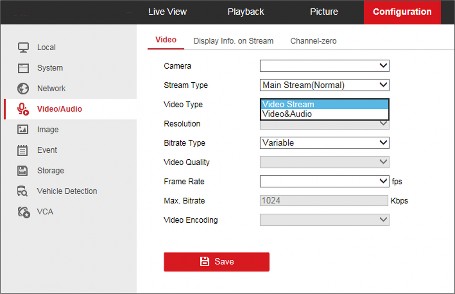
What can I do if there's no sound during live view?
Question
What can I do if there's no sound during live view?
Answer
Usually it is caused by the disconnection of the pickup. Perform the following task to check if the pickup is connected to the device.
-
Set the image quality to HD during live view.
-
Visit the IP address of the device and then log in to the device's web page.
-
Go to Configuration → Video/Audio → Video .
-
Select Video & Audio as the video type.

-
Make sure that the pickup is connected to the device, and that there are sounds during live view on the web page.
-
-
What should I do if maximum channels under live view reached?
Question
What should I do if maximum channels under live view reached?
Answer

Note
Reboot the device or upgrade the device to its latest version.
If the device is added by IP/domain, you can upgrade it to its latest version on the Mobile Client.

-
Why there's no image on the thumbnail?
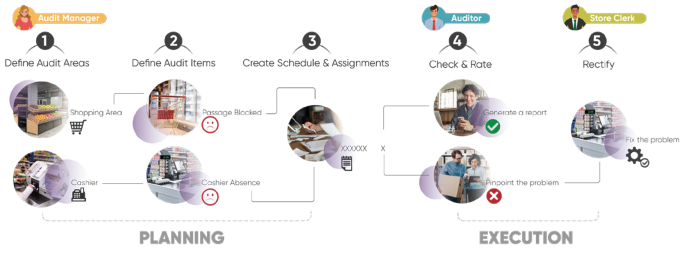

Question
Why there's no image on the thumbnail?
Answer
The thumbnail only displays image after you start live view. You should start live view first.
Chapter 3 Alarm and Notification Related Questions
This section introduces the alarm and notification related questions and the corresponding answers.
-
Why can't I receive alarm notification?
Question
Why can't I receive alarm notification from a device?
Answer
Follow the steps below to solve the problem.
-
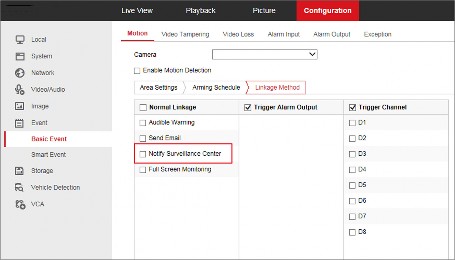
Configure alarm and event settings for the device on the device's web page.
-
Enter the IP address of the device on a web browser and then visit the address.
-
Go to Configuration → Event .
-
Select an event type.
-
Select the required camera.
-
Check the checkbox to enable the event and then configure the relevant settings such as arming schedule.
-
Click Linkage Method and then check Notify Surveillance Center.

-
-
Go to Settings in the operation system of the phone or tablet and then turn on Notification for the Mobile Client.
-
Re-enable alarm notification for the cameras of the device and make sure the notification schedule is correctly configured.
Note
See Enable /Disable Alarm Notification in Help for details.
Note
-
Enable the Mobile Client to push notifications to your phone or tablet.
See Message Push Notification in Help for details.

-
-
Why have I received only one alarm notification after the device had triggered several alarms?


Question
Why have I received only one alarm notification after the device had triggered several alarms?
Answer
To avoid sending alarm notification over-frequently, only one notification of the same type of alarm will be pushed to your phone or tablet in one minute.
Chapter 4 Device Related Questions
This section introduces the device related questions and answers.
-
Where can I find the device verification code?
Question
Where can I find the device verification code?
Answer
-
Solution A: Check the device label.

-
Solution B: Get the device verification code via the web page of the device.
-
Enter the IP address of the device on a web browser and then visit the address.
-
Go to Configuration → Network → Advanced Settings → Platform Access .

-
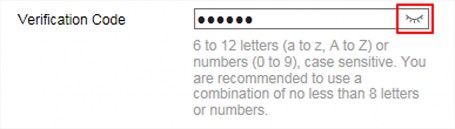
Click to view the device verification code.

-
-
Solution C: If the device is added to iVMS-4200 client software, you can follow the steps below to get the device verification code.
-
Log in to the client software.
-
Go to Remote Configuration → Network and then tap Hik-Connect
-
Click the device to view its verification code.
-
-
-
What if the result shows the device has been added to another account when adding it to the Mobile Client?
Question
What if the result shows that the device has already been added to another account when adding it to the Mobile Client?
Answer

Note
-
Log in to the account and then delete the device from it.
If you forgot the account password, you can retrieve it by the registered email address or phone number.

Note
-
If you don't know which account the device is added to, you can unbind the device from the account via the Mobile Client. See Unbind Device from Its Original Account in the Help for details.
If you fail to unbind the device via the Mobile Client, contact our after sales for help.
-
-
What can I do if the device is offline when adding it?
Question
What can I do, when adding a device, if the result shows that the device is offline?
Answer
-
Make sure the network that the device connected to can access the internet.
-
Check the device's TCP/IP settings.
-
Enter the IP address of the device on a web browser and then visit the address.
-
Go to Configuration → Network → Basic Settings .
-
Perform the following operations.
-
Make sure the device IP address, subnet mask, and gateway address are correctly configured.
-
Set the DNS address to "8.8.8.8".
-
Enable DHCP.
-
-
Go to Configuration → Network → Advanced Settings → Platform Access and then make sure Hik-Connect is enabled and the Hik-Connect status is online.
-
-
-
How to manage frequently-used channels of different devices?
Question
How to manage frequently-used channels of different devices?
Answer
You can add channels of different devices to a Favorites folder. For details, see Favorites Management in the Help.
-
How to share devices added in your visitor account to another account?
Question
How to share devices added in your visitor account to another visitor account?
Answer
You can share devices in your visitor account by scanning QR codes of another account.
-
Where Can I Find the Device Serial Number?
Question
Where can I find the device serial number?
Answer
-
The device serial number is usually on the package label or the device label.
-
Use SADP software to automatically search active online devices in the same subnet with the PC running the software, and then select the required device to view its serial number.
-
-
Why the device's displayed camera number is different with its actual camera number?
Question
Why the device's displayed camera number is different with its actual camera number?
Answer
-
Some channels (or linked cameras) of the device is hidden. See Edit Settings of Cameras Linked to NVR/DVR in the Help for details.
-
If the device is shared by another user, the number of displayed channels (or linked cameras) is determined by the actual number of the shared channels. The unshared channels of the device will not be displayed.
-
-
What permission can be configured for the shared device?
Question
What permission can be configured for the shared device?
Answer
You can configure permissions for playback, alarm notification, two-way audio and PTZ control when sharing a device if the configuration is supported by the device.
-
How many accounts can one channel be shared to?
Question
How many accounts can one channel be shared to?
Answer
A channel can be shared to up to 64 accounts.
-
Can I share devices across regions?
Question
Can I share devices to an account in a different region (e.g., China to Canada)?
Answer
No, you can't.
-
Can I share the device shared to me to another user?
Question
Can I share the device shared to me to another user?
Answer
No, you can't share the device shared to you to another user.
-
Do channels of NVR/DVR support two-way audio on the Mobile Client?
Question
Do channels of NVR or DVR support two-way audio on the Mobile Client?
Answer
No, they don't.
-
How to change device name?
Question
How to change device name?
Answer

-
On the device list page, if the page is in list mode, swipe the device name to the left and tap
 to enter the device settings page. If the page is in thumbnail mode, swipe the device name to the left and then tap to enter the device settings page.
 -
Tap the device name section to edit the device name.
-
-
Why there's no image on the thumbnail?
Question
Why there's no image on the thumbnail?
Answer
The thumbnail only displays image after you start live view. You should start live view first.
-
How to display channel-zero in the device list?




Question
How to display channel-zero in the device list?
Answer

Note
Follow the steps below to display channel-zero in the device list.
The device should support channel-zero.
-
Enable channel-zero on the web page of the device. See the user manual of the device for details.
-
Enable the Mobile Client to display channel-zero in the device list. See Display/Hide Channel- Zero in the Help for details.
Chapter 5 Playback Related Questions
This section introduces playback related questions and answers.
-
Can I adjust playback speed for all added devices?
Question
Can I adjust playback speed for all added devices?
Answer
Note
No, you can't. Only the device added by IP/domain support playback speed adjustment.
For details about adding device by IP/domain, see Add a Device by IP/Domain in the Help.
-
What should I do if maximum channels under playback reached?
Question
What should I do if maximum channels under playback reached?
Answer
-
For NVR of I/K/E series, upgrade the device to V 3.4.97 or later versions.
Note
-
For DVR of K series, upgrade the device to V 3.5.35 or later version.
If the device is added by IP/domain, you can upgrade the device on the Mobile Client. See Upgrade Device Firmware in the Help for details.
-
-
Can the server store video files?


Question
Can the server store video files?
Answer
No, it can't. To play video files from a device, the device should support storing video files.
Chapter 6 Other Questions
This section introduces other questions and the corresponding answers.
6.1 Does the Mobile Client support running on tablets?
Question
Does the Mobile Client supports running on tablets?
Answer
Yes, it does. The Mobile Client supports running on tablets since V3.5.2.
UD13787B